Picture this: You spend an hour finding the exact teal that matches your client's brand. You send the design file to development. The button that launches shows up looking like someone mixed toothpaste with printer ink. What happened?
Nine times out of ten, the problem isn't the developer or the design—it's that nobody translated the color properly between systems. Your design tool speaks one language, CSS speaks another, and somewhere in that handoff, #2EC4B6 became rgb(46, 196, 182) with a typo that nobody caught.
This guide fixes that problem. You'll learn how screens actually create colors, why five different notation systems exist for the same shade of red, and which format to use when you're coding a hover state versus documenting brand guidelines.
What Are Color Codes and Why They Matter in Digital Design
Think of color codes as GPS coordinates for colors. Just like latitude and longitude pinpoint a location, digital notation systems give you exact addresses for every possible color a screen can display.
Here's the fundamental difference from print: Magazines use ink. Four colors (cyan, magenta, yellow, black) mix on paper to create what you see. Your monitor uses light instead—red, green, and blue LEDs shining at different brightnesses, combining to trick your eyes into seeing millions of distinct colors.
Back in 1996, web designers were stuck with 216 colors. That's it. Monitors could only handle 256 colors total, and different operating systems reserved 40 of those for system use. The remaining 216 became the "web-safe" palette. If you used a color outside that set, different computers might substitute unpredictable alternatives.
Today's displays handle 16.7 million colors (256 shades per channel × 3 channels = 16,777,216 combinations). The web-safe limitation disappeared decades ago, but the mathematics behind color codes stayed the same.
Author: Olivia Hartwell;
Source: crafterholic.com
Why bother learning multiple formats instead of just memorizing hex codes? Three reasons:
First, handoffs between design and development break constantly. Figma exports colors one way. Your CSS preprocessor expects another. Knowing both languages means you catch mistakes before they ship.
Second, accessibility laws aren't optional anymore. The Americans with Disabilities Act references WCAG standards, which specify minimum contrast ratios calculated from exact color values. You can't verify compliance by eyeballing—you need the numbers.
Third, maintaining brand consistency across web, iOS, Android, and print requires documentation that everyone understands. Your Android developer doesn't care about hex. They need RGB decimal values because that's what Android's color system uses natively.
Color on the web isn't about what looks good on your monitor—it's about creating a reproducible system that works everywhere. Understanding the mathematics behind color codes transforms you from someone who picks colors to someone who controls them.
— Jeffrey Zeldman
Different formats solve different problems. Hex gives you compact notation perfect for CSS files. RGB makes color math straightforward when you're programmatically adjusting brightness. HSL lets you think about colors the way humans actually perceive them—hue, vividness, darkness.
Understanding Hex Color Codes
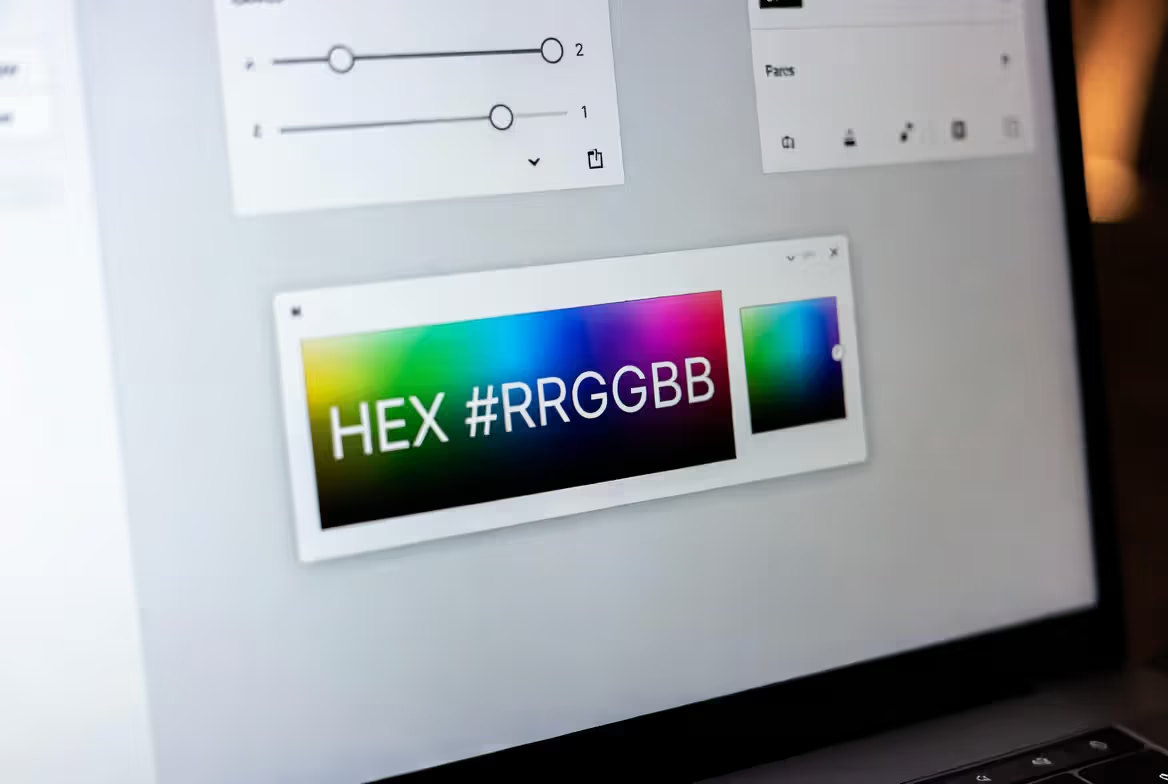
Hexadecimal notation—"hex" for short—compresses color data into a hashtag followed by six characters: #RRGGBB. Each pair controls one light channel (red, green, blue) using base-16 counting.
Base-16 means you count: 0, 1, 2, 3, 4, 5, 6, 7, 8, 9, A, B, C, D, E, F. After F (which equals 15 in regular counting), you roll over to 10 (which equals 16). The highest two-digit hex number is FF, representing 255 in decimal.
Look at #FF0000. That breaks down as FF red (maximum brightness), 00 green (off), 00 blue (off). You get pure red. Switch it to #00FF00 and you've got maximum green with no red or blue. The code #0000FF produces pure blue.
Here's where hex gets useful: you can read approximate colors without converting anything. High values (near FF) mean bright. Low values mean dark. When all three channels match, you get grayscale.
#FFFFFF = all channels maxed = white
#000000 = all channels off = black
#888888 = all channels at medium = middle gray
#CCCCCC = all channels high but not maxed = light gray
#333333 = all channels low but not zero = dark gray
Author: Olivia Hartwell;
Source: crafterholic.com
Real projects reuse these grayscale values constantly. Dark text? Usually #222222 or #333333. Light borders? Often #DDDDDD or #E5E5E5. You'll see these numbers so frequently they become second nature.
Three-digit shorthand compresses codes where both digits in each channel match. Instead of typing #FF0000, write #F00. The browser expands it automatically—F becomes FF, 0 becomes 00. But this only works when the pattern fits. You can't shorten #FF0033 because the blue channel (33) doesn't have matching digits.
Common brand colors use memorable hex values. Twitter's blue: #1DA1F2. Spotify's green: #1DB954. Coca-Cola's red: #F40009. These aren't random—brand guidelines specify them precisely, and every designer on the team uses the identical code.
One gotcha trips up beginners constantly: forgetting the hashtag. Write FF0000 instead of #FF0000 in your CSS, and the browser ignores it completely. The hash symbol tells the browser "this is a color code, not some other kind of value."
RGB and RGBA Color Values Explained
RGB spells out what hex compresses: rgb(red, green, blue) with each channel specified as a number between 0 and 255. The code rgb(255, 0, 0) means the same thing as #FF0000—both produce identical red.
Why 0-255? Computers store each channel in 8 bits of memory. Eight bits can represent 256 different values (2 to the 8th power). Zero counts as a value, so you get 0 through 255.
Decimal notation makes color math dramatically easier. Want to lighten a color by 20%? Multiply each channel by 1.2, capping at 255. Starting with rgb(100, 150, 200), that becomes rgb(120, 180, 240). Try doing that math in hex—you're converting to decimal anyway.
Darkening works the same way in reverse. Multiply by 0.8 to reduce brightness by 20%. The color rgb(200, 100, 50) becomes rgb(160, 80, 40). JavaScript handles these calculations smoothly since it already works in decimal.
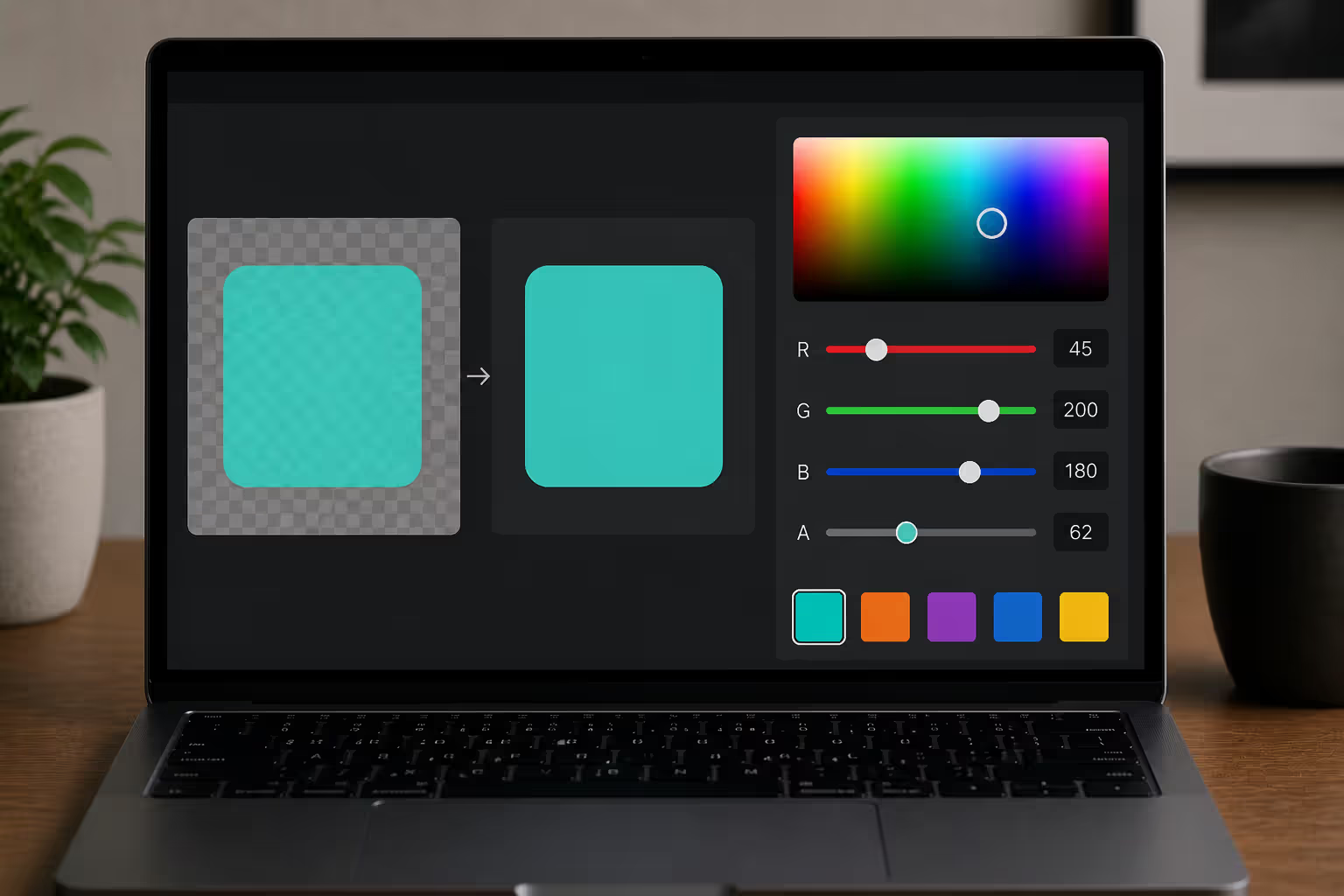
RGBA adds a fourth value for transparency: rgba(red, green, blue, alpha). The alpha channel ranges from 0.0 (invisible) to 1.0 (completely solid). Decimal values like 0.3 or 0.75 represent partial transparency.
This distinction matters constantly. A solid red button uses background-color: rgb(255, 0, 0). Make it 60% transparent with background-color: rgba(255, 0, 0, 0.6), and content underneath shows through. Standard hex codes can't do this—they specify only color, not transparency.
Author: Olivia Hartwell;
Source: crafterholic.com
Real-world RGBA use cases:
Modal overlays use rgba(0, 0, 0, 0.7) to darken the page behind a popup. The overlay is black at 70% opacity, making the modal stand out while keeping underlying content visible enough to provide context.
Text shadows often use rgba(0, 0, 0, 0.2) for subtle depth. Fully opaque black shadows look harsh. At 20% opacity, they add dimension without dominating.
Hover states can reduce opacity slightly—changing from rgba(45, 120, 210, 1.0) to rgba(45, 120, 210, 0.85) on hover creates a gentle "lifting" effect as the element becomes slightly see-through.
Common RGB combinations you'll reference repeatedly:
White appears as rgb(255, 255, 255) with all channels maxed. Black is rgb(0, 0, 0) with everything zeroed out. Primary red equals rgb(255, 0, 0). Web green—darker than you'd expect—sits at rgb(0, 128, 0). Pure blue uses rgb(0, 0, 255). Medium gray balances at rgb(128, 128, 128). Yellow combines full red and green: rgb(255, 255, 0). Orange mixes full red with partial green: rgb(255, 165, 0).
Browser developer tools default to showing RGB when you inspect elements. Click on any element, look at the Styles panel, and you'll see colors displayed as rgb() values. This makes RGB the format you'll encounter most when debugging or extracting colors from live sites.
Other Color Code Formats You Should Know
HSL and HSLA (Hue, Saturation, Lightness)
HSL notation matches how designers actually think about color: hsl(hue, saturation%, lightness%). Instead of specifying light intensities, you describe the color's appearance directly.
Hue represents the color type as a position on a color wheel, measured in degrees from 0 to 360. Picture a circle: 0° and 360° both land on red, 120° hits green, 240° reaches blue. Positions between these landmarks give you every other hue—orange around 30°, yellow at 60°, cyan near 180°, purple around 270°.
Saturation controls color vividness as a percentage. At 0%, any hue becomes gray (no color at all). At 100%, you get the most vivid version possible. Set it to 50% for muted, pastel-like tones.
Lightness adjusts darkness as a percentage. Setting it to 0% always produces black, regardless of hue. At 100%, everything becomes white. The "true" version of any color sits at 50% lightness.
This format excels when building color variations. Take your brand blue at hsl(210, 85%, 45%). Want a lighter version for backgrounds? Change only the lightness: hsl(210, 85%, 90%). Same hue, same saturation, but much lighter. Need a muted variant? Drop saturation to 40% while keeping everything else: hsl(210, 40%, 45%).
Trying these adjustments in RGB means complex calculations. The blue rgb(18, 89, 176) doesn't obviously relate to a lighter version rgb(214, 230, 247). But in HSL, the relationship is explicit—both share hue 210° with 85% saturation, differing only in lightness (45% vs 90%).
HSLA works identically to RGBA, tacking on an alpha channel: hsla(210, 85%, 45%, 0.75) gives you that same blue at 75% opacity.
Many designers prefer building entire color systems in HSL. Define your primary hue once, then generate a full palette by varying only saturation and lightness. This approach creates naturally harmonious color sets since everything shares mathematical relationships.
CMYK for Print vs Digital
CMYK—Cyan, Magenta, Yellow, and Key (black)—belongs to the printing world, not web design. Commercial printers mix these four ink colors to create what you see on paper.
The fundamental difference: ink absorbs light (subtractive color), while screens emit light (additive color). This means the same color definition produces different results in CMYK versus RGB. Some vibrant blues and greens you can create on screen simply don't exist in CMYK—the ink can't reproduce them.
Converting RGB to CMYK for print always causes color shifts. That electric blue #00FFFF on your monitor becomes noticeably duller on paper because printing inks have a narrower gamut—a smaller range of achievable colors.
Web designers rarely touch CMYK directly. Browsers don't support it in CSS. Design tools handle CMYK only for print export features. If someone hands you CMYK values for a website, you'll need to convert them to RGB first—and the result won't match what they see on their printed reference.
Named Colors in HTML/CSS
CSS recognizes 147 color names you can type instead of codes: write color: crimson rather than color: #DC143C. The spec includes obvious ones (red, blue, green) and oddly specific ones (peachpuff, papayawhip, blanchedalmond).
Named colors improve code readability. The rule background-color: lavender communicates intent better than background-color: #E6E6FA. When someone reads your stylesheet, they immediately understand what you meant.
But names come with gotchas. CSS "green" is actually quite dark at #008000—the bright green most people expect is called "lime" (#00FF00). The color "tan" looks nothing like what you'd call tan in real life. And British vs American spelling creates duplicates: "gray" and "grey" both work but refer to the same value.
The bigger limitation: the palette is fixed. You can't invent names for your brand colors. Professional projects use names sparingly—maybe for quick prototypes or obvious cases like background: white, but rarely for production design systems where precise brand colors matter.
How to Convert Between Color Code Formats
You'll convert between formats constantly. A client sends you Pantone 2738C. You need hex. A developer pastes an RGB value into Slack. You're working in a design tool that expects HSL.
Manual hex-to-RGB conversion: Split the six characters into three pairs, convert each from base-16 to base-10. The color #3A7BFF separates into 3A, 7B, and FF. Convert each: 3A equals 58, 7B equals 123, FF equals 255. Result: rgb(58, 123, 255).
Going backward (RGB to hex) reverses this. Take rgb(255, 99, 71). Convert each decimal to base-16: 255 becomes FF, 99 becomes 63, 71 becomes 47. Concatenate with a hash: #FF6347.
HSL conversions get messy fast. Converting RGB to HSL requires finding the brightest and dimmest channels, calculating their spread, determining which channel dominates, then applying formulas that vary depending on which channel is winning. Starting with rgb(58, 123, 255), you'd calculate lightness (around 61%), saturation (100% because the color is vivid), and hue (approximately 220° because blue dominates with some green). Final result: roughly hsl(220, 100%, 61%).
Nobody does this math by hand. Use tools instead.
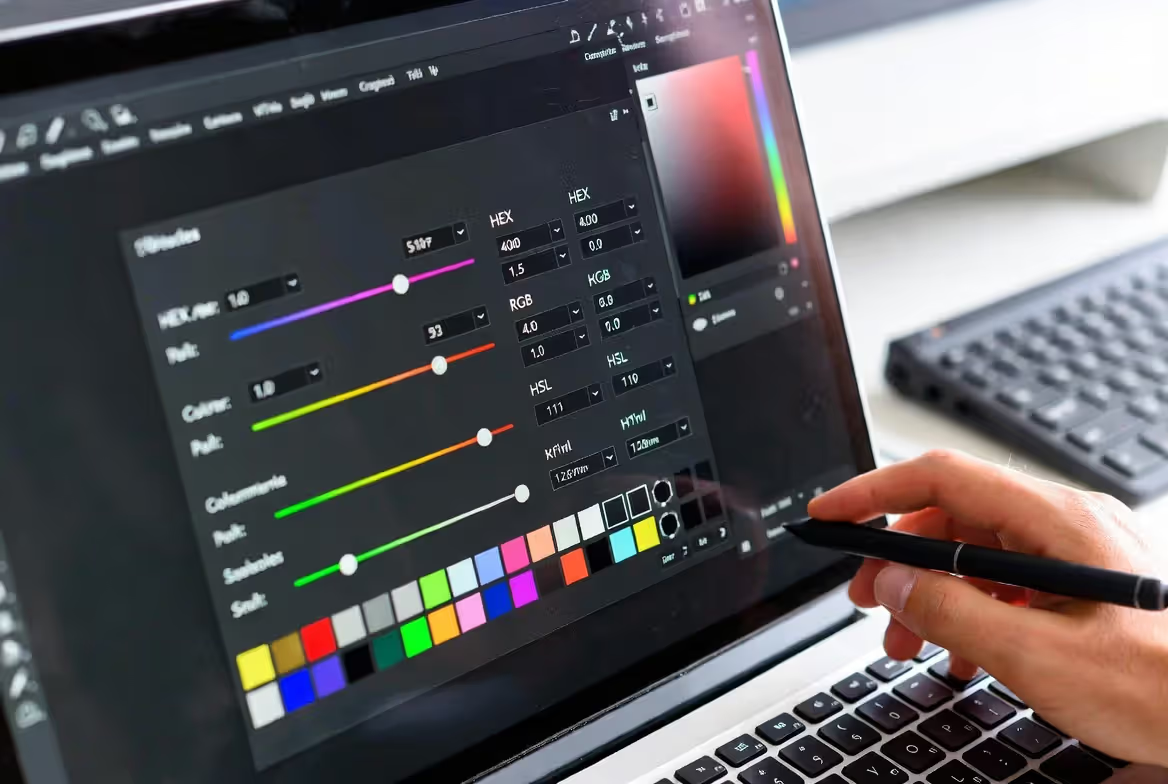
Browser DevTools offer the fastest method. Inspect any element, find a color in the Styles panel, click the small colored square next to the value. The color picker appears. Click the color value itself (not the picker) to cycle through formats: hex → RGB → HSL → back to hex. Each click converts automatically.
Online converters work for batch processing. Search "color converter" and you'll find dozens. Paste in #3A7BFF, get back RGB, HSL, RGBA, and sometimes CMYK equivalents. Many include extras like color pickers, palette generators, and accessibility checkers.
Design software handles conversion internally. Figma shows colors in multiple formats simultaneously—copy the value in whichever format you need. Sketch defaults to hex but displays RGB in the picker. Adobe XD lets you switch between formats using a dropdown.
When to use each format:
Hex suits CSS files. It's compact (7 characters including the hash), universally recognized, and every tutorial uses it. Your codebase stays consistent when everyone defaults to hex for solid colors.
RGB works best in JavaScript. You're already thinking in decimal when coding. Calculations like "darken this by 15%" happen naturally without conversion. Animation libraries often expect RGB input.
HSL shines when building color systems from scratch. Start with a base hue, generate variations by adjusting saturation and lightness programmatically. The relationships between colors stay obvious: they're all hue 210° with varying saturation/lightness.
RGBA and HSLA become mandatory anywhere transparency enters the picture—overlays, shadows, hover effects, glass-morphism designs.
Author: Olivia Hartwell;
Source: crafterholic.com
Common mistakes to avoid:
Forgetting the hash when copying hex codes. FF0000 won't work; #FF0000 will.
Mixing up RGB channel order. It's always red-green-blue, never blue-green-red or any other sequence.
Treating RGBA alpha like color channels. Alpha ranges from 0 to 1, not 0 to 255. Using rgba(255, 0, 0, 255) expecting full opacity actually creates an invalid value.
Trying to use CMYK in web projects. Browsers don't support it. Convert to RGB first.
Color Name
Hex Code
RGB Notation
RGBA (Half Transparent)
HSL Format
Pure Red
#FF0000
rgb(255, 0, 0)
rgba(255, 0, 0, 0.5)
hsl(0, 100%, 50%)
Lime Green
#00FF00
rgb(0, 255, 0)
rgba(0, 255, 0, 0.5)
hsl(120, 100%, 50%)
Pure Blue
#0000FF
rgb(0, 0, 255)
rgba(0, 0, 255, 0.5)
hsl(240, 100%, 50%)
White
#FFFFFF
rgb(255, 255, 255)
rgba(255, 255, 255, 0.5)
hsl(0, 0%, 100%)
Black
#000000
rgb(0, 0, 0)
rgba(0, 0, 0, 0.5)
hsl(0, 0%, 0%)
Medium Gray
#808080
rgb(128, 128, 128)
rgba(128, 128, 128, 0.5)
hsl(0, 0%, 50%)
Orange
#FFA500
rgb(255, 165, 0)
rgba(255, 165, 0, 0.5)
hsl(39, 100%, 50%)
Teal
#008080
rgb(0, 128, 128)
rgba(0, 128, 128, 0.5)
hsl(180, 100%, 25%)
Using Color Codes in Your Design Workflow
Getting colors from design files into production code requires understanding what each tool expects. CSS accepts hex, RGB, RGBA, HSL, and HSLA interchangeably—color: #FF0000, color: rgb(255, 0, 0), and color: hsl(0, 100%, 50%) all render identically.
HTML inline styles follow CSS syntax: <div style="background-color: #3A7BFF;">. Modern development avoids inline styles (they're hard to maintain and override caching), but when you need them, the format stays the same.
Design tools each have format preferences. Figma shows hex by default but lets you copy as RGB or HSL with a right-click. Adobe XD defaults to hex with on-demand conversion. Sketch displays hex in the interface but shows RGB in the color picker panel. Learn your tool's export options—usually found by right-clicking color swatches.
Creating maintainable palettes means documenting colors centrally, not scattering the same hex code across 47 different files. Use CSS custom properties (variables):
Reference these throughout your styles: color: var(--brand-primary). Now updating your primary brand color means changing one line instead of hunting through thousands of lines of CSS.
Accessibility isn't optional—it's legally required for government sites, educational institutions, and increasingly private companies under the ADA. WCAG 2.1 Level AA standards mandate contrast ratios: at least 4.5:1 for normal text against backgrounds, 3:1 for large text (18 points or larger, or 14 points if bold).
Calculate ratios using exact color values. Tools like WebAIM's contrast checker accept any format. Dark text on light backgrounds usually works: #333333 on #FFFFFF gives you 12.63:1, easily passing. Light text on colored backgrounds needs testing: white (#FFFFFF) on a medium blue (#3A7BFF) yields only 3.77:1, failing for normal text but passing for large text.
Fix failing combinations by adjusting lightness. Darkening that blue to #2A5BBF improves contrast to 4.58:1, passing the threshold. Or lighten your text slightly—#F0F0F0 instead of pure white sometimes helps without visible difference.
Version control benefits from documented color decisions. Comment why you chose specific values:
/* #2A5BBF - brand blue darkened from #3A7BFF to meet WCAG AA contrast requirements for normal text on white backgrounds */
--brand-primary-accessible: #2A5BBFF;
Future team members (including yourself in six months) will understand the reasoning instead of wondering why two similar blues exist.
Design tokens—JSON or YAML files defining design system values—enable sharing between design and code. A tokens file might look like:
Tools like Style Dictionary or Theo transform these tokens into platform-specific formats: CSS variables for web, Swift for iOS, XML for Android. Change the token once, rebuild for each platform, and every app updates simultaneously.
Practical workflow tips:
Keep a project-specific color reference file. List every color with its purpose: "Primary CTA button: #3A7BFF" beats trying to remember what --color-action-primary means six months later.
Screenshot your design files with the color picker open showing exact values. Handoff documentation with visual proof prevents "that's not the right blue" debates.
Test color combinations in the actual context, not just in design tools. Colors that look fine in Figma sometimes fail accessibility testing or appear different against real content.
Build a personal swipe file of color codes from sites you admire. Found a perfect subtle gray? Save it. Great hover state transition? Document both colors and the timing. You'll reference this library constantly.
Frequently Asked Questions About Color Codes
How do hex and RGB codes differ in practice?
Hex compresses the same information RGB spells out—both describe red, green, and blue channel intensities, just using different numbering systems. Hex uses base-16 (0-9, A-F) for compact notation like #FF0000. RGB uses familiar base-10 decimals like rgb(255, 0, 0). They're mathematically equivalent. Choose hex for cleaner-looking CSS files and RGB when doing color math in JavaScript.
Can I add transparency to hex color codes?
Yes, using 8-digit hex codes with alpha channels: #FF0000FF (red at full opacity) or #FF000080 (red at 50% opacity). The last two digits control transparency, ranging from 00 (invisible) to FF (solid). Browser support is excellent in modern browsers, but RGBA notation like rgba(255, 0, 0, 0.5) remains more readable and universally understood. Most developers stick with RGBA for transparency to avoid confusion.
Are named colors like "red" and "blue" reliable across browsers?
Every modern browser interprets the 147 standard CSS color names identically. "Red" always produces #FF0000, "blue" always gives #0000FF, and so on—the spec defines exact values. The reliability problem is human, not technical: CSS "green" (#008000) is darker than most people expect, while "lime" (#00FF00) looks like what non-developers call "green." Use names for prototyping or obvious cases, but stick with hex/RGB for production to avoid ambiguity.
How do I extract the color code from an element on a webpage?
Open browser DevTools (F12 or right-click → Inspect), click the element selector (arrow icon), then click the element you're interested in. Look at the Styles panel on the right. Color values appear as clickable squares—click them to open a color picker showing hex, RGB, and HSL formats. You can also use browser extensions like ColorZilla that let you click anywhere on a page to grab color values instantly.
Which color format works best for CSS files?
Hex codes are the standard for solid colors: they're compact, universally recognized, and every CSS tutorial uses them. Use RGBA only when transparency matters—overlays, shadows, hover states. Some teams prefer HSL for the entire project because it makes color variations more intuitive, but this remains less common. Pick one format (usually hex) as your default and stick with it for consistency. Mixing formats randomly makes stylesheets harder to maintain.
Do the same color codes display identically on all devices?
Color codes define the same mathematical values everywhere, but physical displays vary. A cheap TN panel monitor shows colors differently than a high-end IPS display. Mobile phones vary wildly in color accuracy. Ambient lighting changes perception—colors look different in bright sunlight versus a dark room. You can't control user hardware, but you can test on multiple devices. Focus on relative relationships (contrast, harmony) rather than absolute color perfection. What matters is that your text remains readable and your calls-to-action stand out, not that everyone sees the exact same shade of teal.
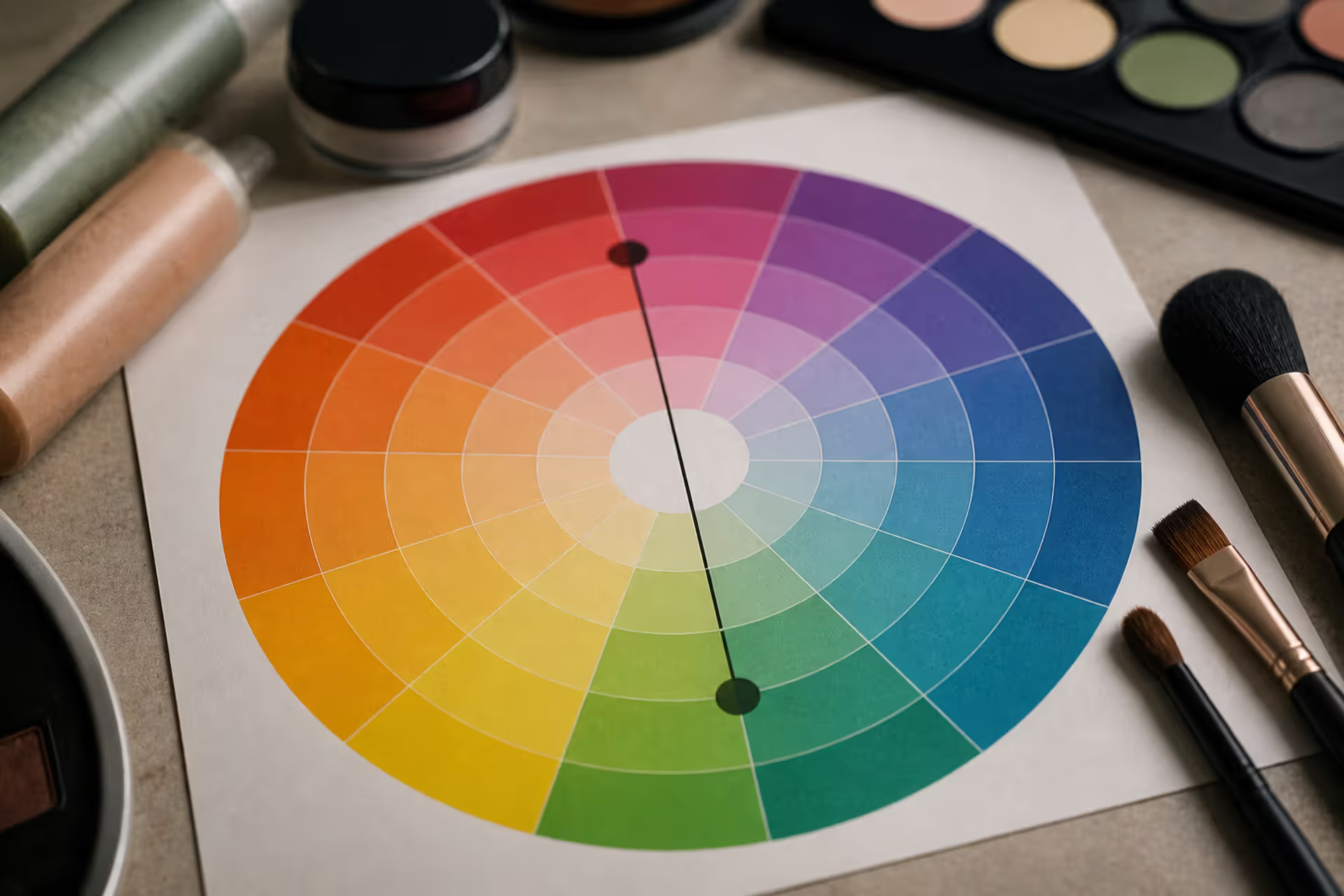
Green tones appearing where they shouldn't can be frustrating. Red cancels out green because these colors sit directly opposite on the color wheel. This principle applies across makeup, hair color, painting, and digital editing, giving you precise control over unwanted hues.
Discover the essential types of color palettes used in design, from monochromatic schemes to complex tetradic systems. Learn how each palette type works, when to use them, and how to choose the right colors for your specific project needs with expert insights and practical examples.
The rounded square has become the defining shape of digital interfaces. From app icons to buttons, this geometric form appears billions of times daily. Learn the mathematical differences between rounded squares, squircles, and superellipses, plus platform-specific implementation standards.
Converting RGB digital colors to PMS for print requires more than software—it demands understanding color gamut differences, using physical Pantone guides, and managing expectations. This comprehensive guide explains why screen colors don't translate directly to print and shows you proven methods for accurate color conversion.
The content on this website is provided for general informational and educational purposes only. It is intended to explain concepts related to digital design, visual art, color theory, art techniques, design principles, and design history.
All information on this website, including articles, guides, and examples, is presented for general educational purposes. Creative outcomes may vary depending on individual skill, tools, and practice.
This website does not provide professional design services or guarantee results, and the information presented should not be used as a substitute for formal education or professional consultation.
The website and its authors are not responsible for any errors or omissions, or for any outcomes resulting from decisions made based on the information provided on this website.